


6 Tips To Organize Your Apple Watch So You'll Actually USE IT


I have to admit: it took me a while before I fully appreciated my Apple Watch. Sure, I liked that it tracks my vitals and integrates well with my iPhone, but I'd go long stretches where I barely looked at my Apple Watch for anything other than telling time, much less interacted with it in any significant way. Add on the fact that it constantly gets stuck in my wife's hair when I go to sleep, and you get a device that I almost completely stopped using most of the time.
But I recently landed on a way of organizing my Apple Watch in a way that makes sense for the device, and it's been a complete game-changer. Now, I use it all the time and I can't imagine my life without it.
So here are my 6 tips on how to organize your Apple Watch to better integrate into your life in ways you'll actually use it.
Tip #1: Use Your Watch Face For Up-To-Date Info

Because the Apple Watch is so limited in screen size and buttons, you have to be smart about where you put your apps.
The watch face should be reserved either for up-to-date complications you want access to throughout the day OR for apps you access a lot. The rest should be saved for the Dock or the App View (which we'll talk about later).
For instance, on my main watch face I use complications for Activity, Things, Waterminder, and Pedometer (not to mention calendar date). These complications update throughout the day based on my usage of the app, meaning I can quickly glance down and see how I'm doing on my fitness, water consumption, my to-dos, and my steps. I also have a complication for Day One because although it doesn't update, I use it often enough to dictate audio diaries that I want it immediately accessible.
The specific information you find important will vary from person to person. I personally use my Apple Watch as a health and wellness device, so I typically prioritize fitness and mindfulness features over productivity features. But your mileage may vary.
Tip #2: Change Your Watch Faces Automatically

If you have a hard time pinning down to just one watch face, switch between multiple, or better yet: do it automatically. I have different watch faces for different times of day and focus modes. For instance when I start a workout, my phone and watch shift to my focus mode and my watch face changes to one dedicated to workouts. (Bonus tip: I also have my phone automatically shift to Focus mode when I'm near the gym.)
You can also set an automation so your watch face changes based on the time of day. I have a wind-down watch face that automatically comes on at 8pm every day that shows my battery, my overall activity throughout the day, my alarm, and my sleep metrics from the previous night so I know how much sleep I should aim for that night.
Then of course, I have my main watch face which houses most of the information I need most of the time.
Tip #3: Use the Dock
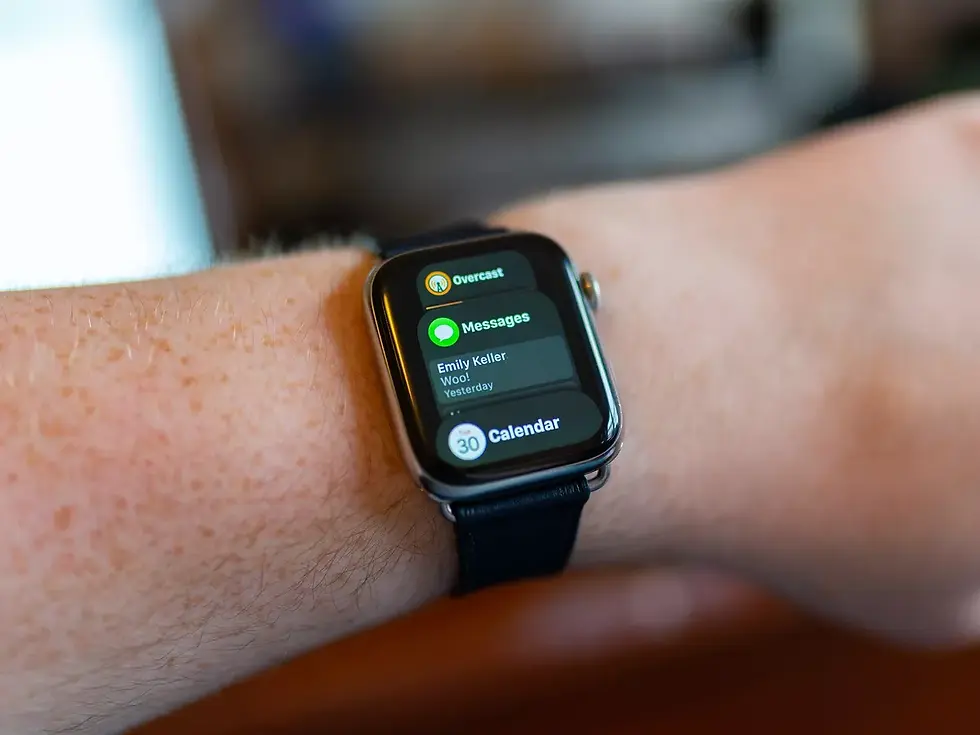
The dock is an excellent way to house the apps you use most often. If you have your settings correctly, you can set the dock to show up with Favorites instead of recents. I personally use this for all of my audio playback apps such as Music, Audible, Castro, and Book Player, allowing me to quickly cycle between one or the other. This also allows me to keep my main middle complication open for something besides "Now Playing", which I not only have in my Dock but also I have set to automatically launch whenever I start playback.
Regardless of how you use it, I'd try wherever possible to keep these docked favorites to apps where it's valuable to have a preview of the app. That's why I like having my audio playback apps here: because I can see what I was recently playing in each app and decide which I want to launch accordingly.
Tip #4: "Hack" the Grid View
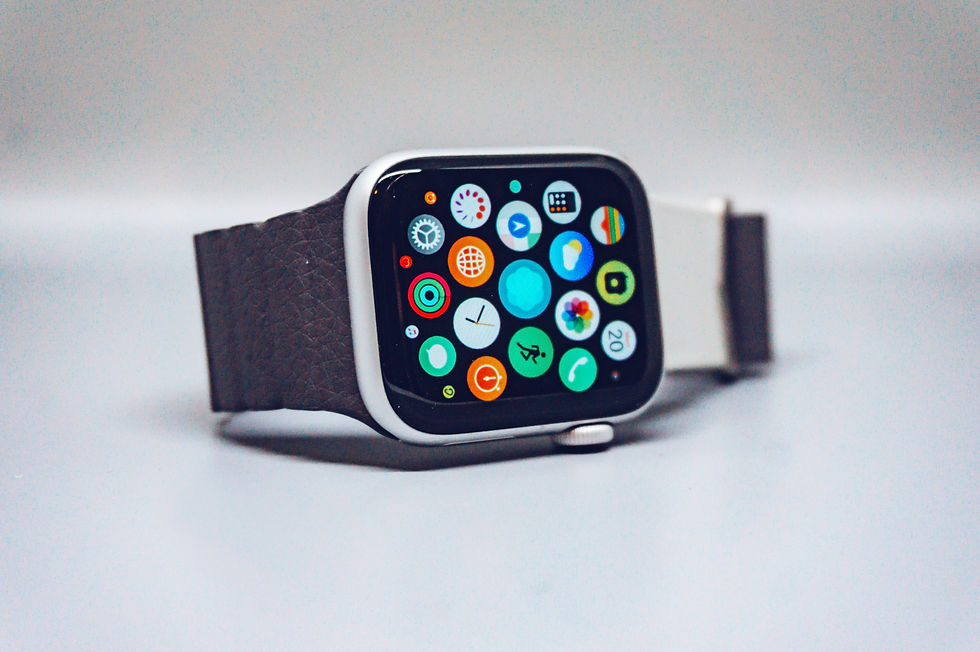
The app view is admittedly my least favorite aspect of the Apple Watch. You can theoretically use a list view to see your apps in alphabetical order, but I have so many apps that it honestly becomes more of a chore to scroll through them. So what I do instead is use the Grid View, but I create a long tree of apps that are either built-in and I can't delete, or they're apps that I have readily accessible on my watch face or dock that I don't want to delete, but I don't necessarily need front and center. Once that's done, I look at the apps I use most often and put them in a ring around the Clock complication. For instance, I go to LA Fitness all the time and use my watch to sign in, so I have that right next to the clock. I also use my watch as my Roku remote pretty often, so that's close as well. I set timers a lot, so that's there.
Then what I do is I group apps together based on their category or function. For instance, I put the alarm and stopwatch to the left of the timer app; I put the Remote and Smart Home apps near the Roku app, and I put my other workout apps near the LA Fitness app. The idea that when you are trying to quickly think of the app, you launch the Grid View and say "Okay I'm looking for my heartrate monitor app. I know it's a fitness app, so I'll scroll toward fitness, and voila, here it is."
Typically I reserve the Grid View for apps I use maybe once every day or two.
Bonus tip: try to avoid repeating apps between your watch face, dock, and Grid View as much as you can. Because you're so limited on space, chances are you probably have more apps you want quick access to than you have space for, so it doesn't make sense to have
Tip #5: Be Selective With Your Notifications
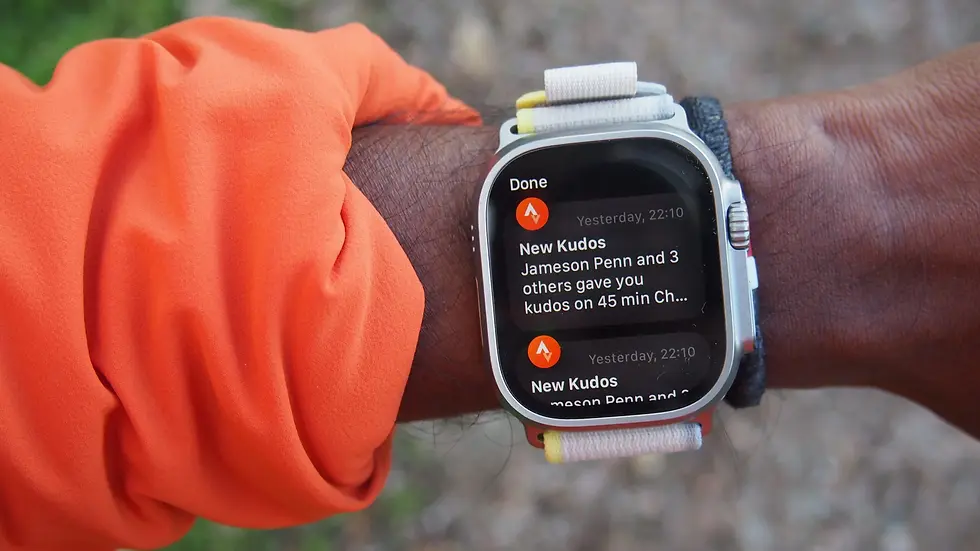
When I first got my Apple Watch, I was so excited to get all of my notifications to my watch until I realized my watch was buzzing constantly. Of course, part of this was due to me having a ton of notifications on my phone (which I later fixed), but another aspect is that not all notifications need to go to my watch.
I limit my watch notifications to two things: direct messages from people (like texts, Slacks, etc), particularly time-sensitive notifications (such as Ring alerts, Instacart alerts, etc), and fitness-based alerts such as those that remind me to drink water (it is a fitness tracker after all!). The idea is to know that when my watch buzzes me, it's something important enough that it's worth the distraction.
It's very easy to let the Apple Watch become a distraction machine, when the point of it is to enhance our lives.
Tip #6: Remember The Watch's Limitations

This last tip isn't so much a practical tip as it is an idea: the Apple Watch is not your phone, so don't try to make it your phone.
The watch does certain things really well. It tracks your vitals. It gives you information at a glance and allows you to easily manipulate and input simple data. It is not good for more complex tasks that require inputting information or reading lots of information, such as texting or reading emails. Play into the strengths of the Apple Watch and use your phone / iPad for the rest.


Comments